 Beam
Beam Windows and time
Window management
Snap layouts, a window switcher, and an optional Command-Tab replacement.
Snap layouts
Type the layout name, or give it a hotkey. None have a default hotkey. Each has Apply to Front Window and Set Hotkey….
| Group | Layouts |
|---|---|
| Halves | Left Half, Right Half, Top Half, Bottom Half |
| Quarters | Top Left, Top Right, Bottom Left, Bottom Right |
| Thirds | Left Third, Centre Third, Right Third, Left Two Thirds, Right Two Thirds |
| Size | Maximize, Almost Maximize (5% inset), Center |
| Displays | Move to Next Display, Move to Previous Display |
That is 18 commands. Window moves need Accessibility. Settings → Windows lists every layout with a small diagram and a hotkey recorder, and shows a banner if Accessibility is not granted.
Switch Windows
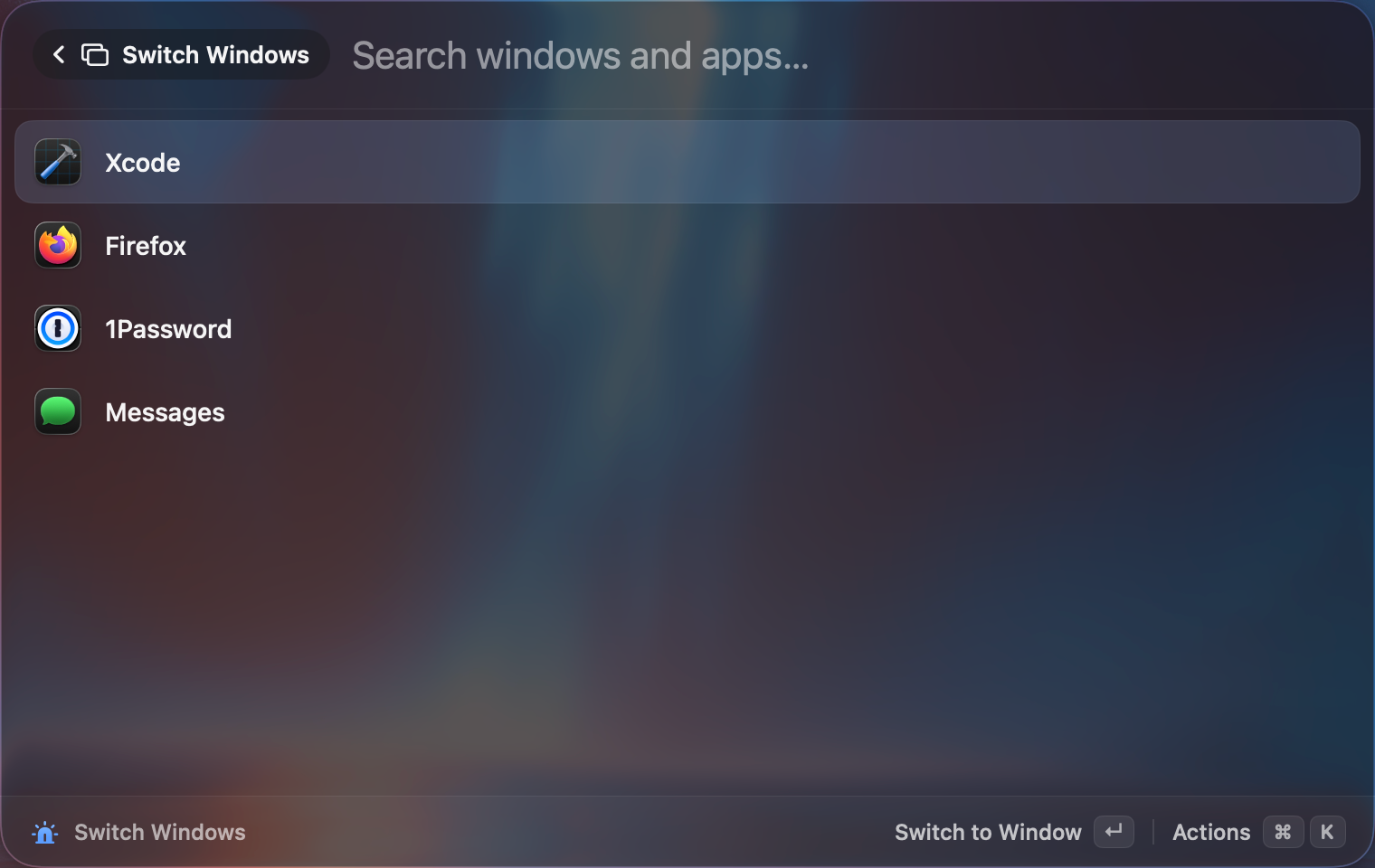
Search switch windows to list every open window across all apps. Actions: Switch to Window, Quit, Hide. The Switch Windows hotkey is also in Quick Access.
Command-Tab replacement
Settings → General → App Switcher → Replace ⌘Tab. Switch by Windows or Apps.
| Key | Does |
|---|---|
| Tap ⌘Tab and release | Jump to the last window. |
| Hold ⌘, press Tab | Browse cards. The overlay appears after 0.25 seconds. |
| ⇧ | Go backwards. |
| ` | Cycle through windows of the same app. |
| ←→ | Move. |
| 1 to 9 | Jump to that card. |
| Type letters | Filter by name. |
| Q | Quit the selected app. |
| Esc | Cancel. |
| Release ⌘ | Switch. |
Thumbnails come from Screen Recording and are cached.
Try it
Type left half and press ↵. Then maximize puts it back.