 Beam
Beam Windows and time
Calendar and meetings
Your day in the launcher, with one key to join the call.
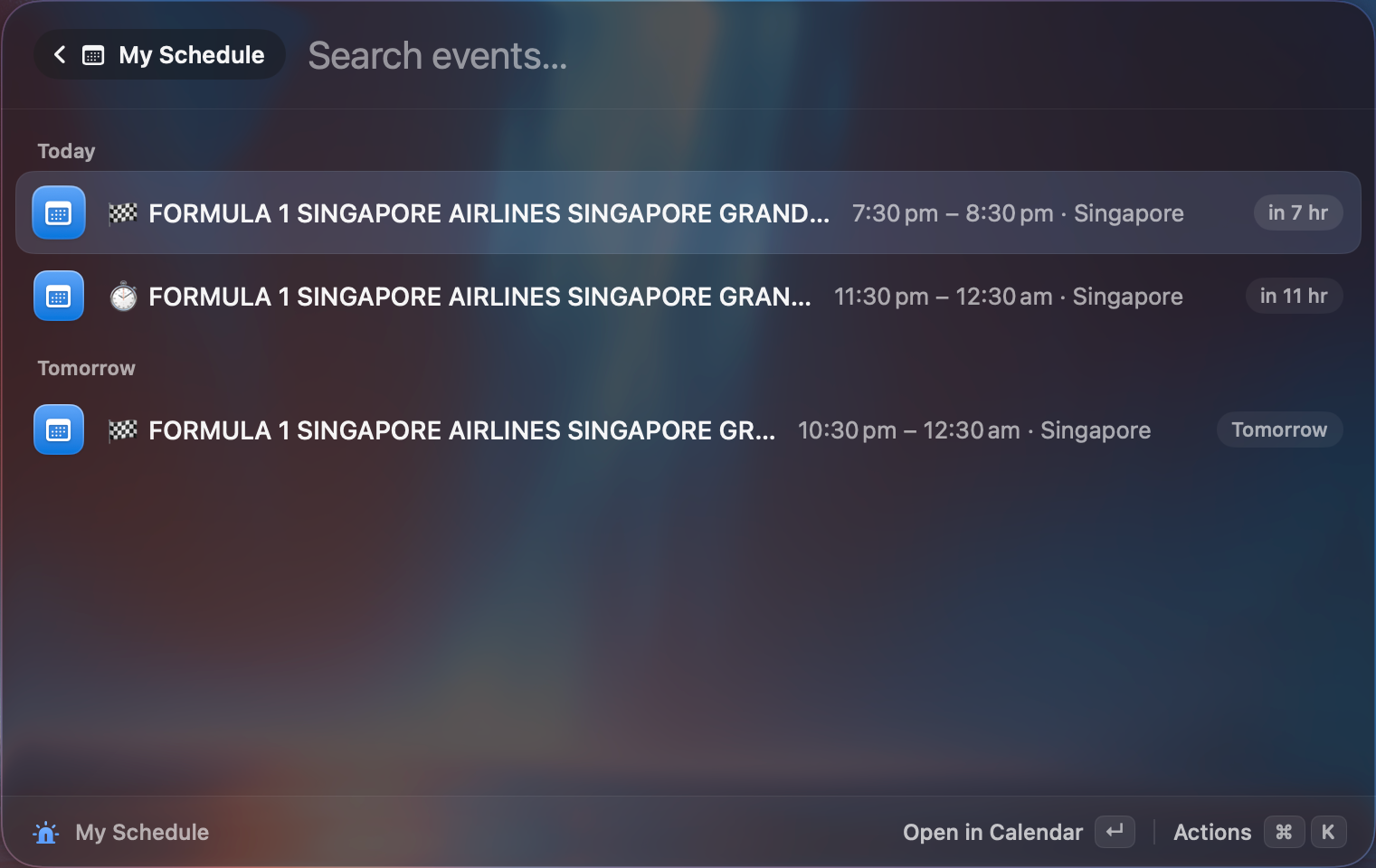
Beam reads your calendars through macOS (EventKit), locally. The first time, choose Connect Calendar.
My Schedule
Search My Schedule for today and tomorrow. Events can also be found by title or location.
Up next
Your next meeting is pinned to the top of the empty launcher, ready to join with ↵. In Settings → Calendar, Show upcoming meeting can be Never, 15 minutes, 30 minutes, 1 hour (default) or 2 hours before.
Meeting links
Beam finds links in event notes and locations for Zoom, Google Meet, Microsoft Teams, Webex, FaceTime, Whereby, Slack Huddle and Discord.
| Action | Notes |
|---|---|
| Join <service> | Opens the link. |
| Open in Calendar | |
| Copy Meeting Link | |
| Copy Event Details |
Menu bar and invitations
Settings → Calendar → Next meeting in menu bar shows a countdown beside the Beam icon, with Join one click away. Running timers take priority. Choose Never, Always or Within lead time (default). Pending invitations appear as Respond items that open the event in Calendar. You can hide individual calendars in the Calendars list. Hidden calendars do not appear anywhere in Beam.
Private, with one exception
Events are read on your Mac. If you let the AI use its calendar tool with a cloud model, the events it reads go to that provider.