 Beam
Beam Capture and type
Snippets
Short keywords that expand into full text in any app.
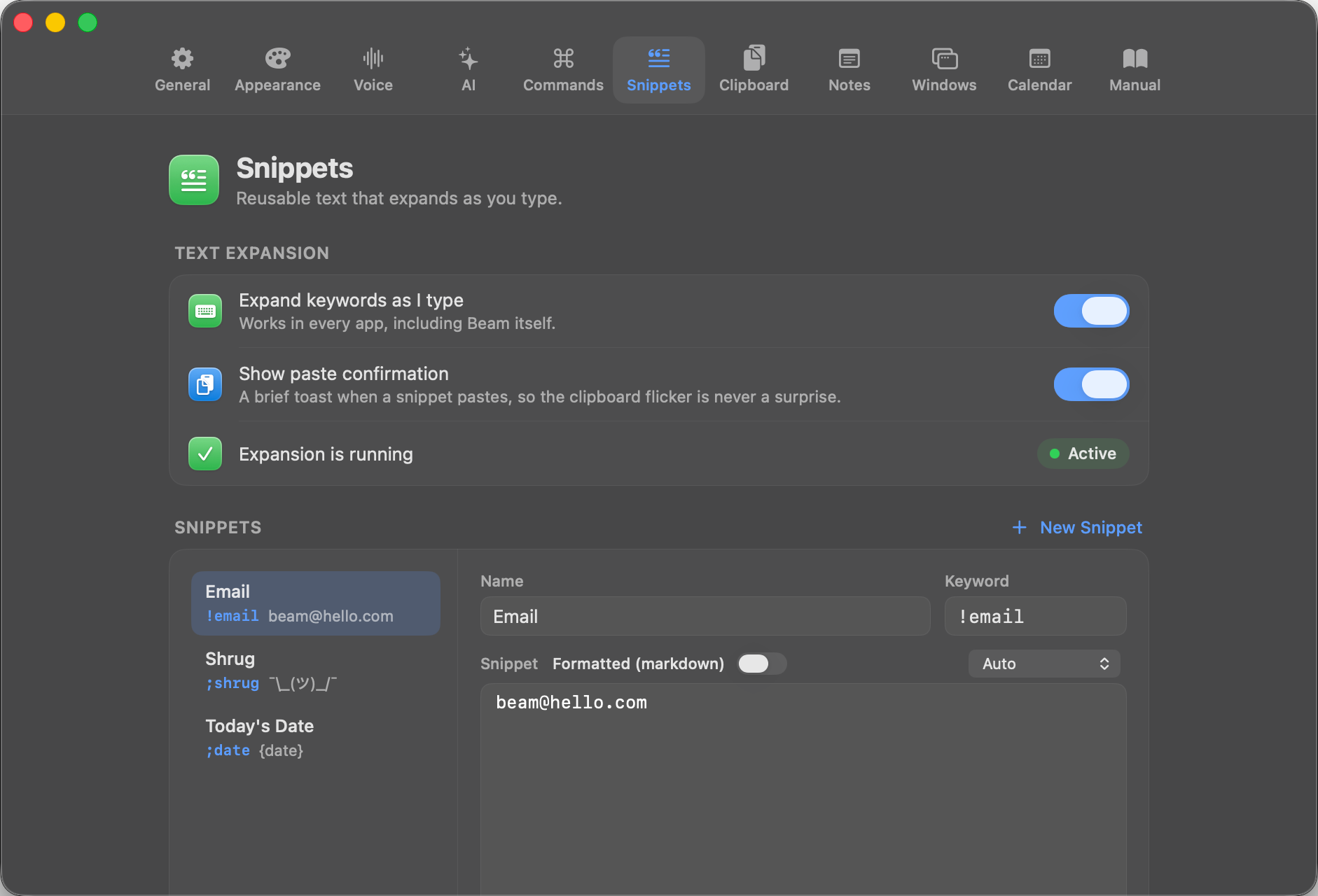
Create one
Go to Settings → Snippets → New Snippet. Give it a name, a keyword such as ;hi, and the text. Save. Now type the keyword in any text field. It expands.
Placeholders
| Placeholder | Inserts |
|---|---|
{clipboard} | Current clipboard text. |
{date} | Today's date. |
{time} | The current time. |
{datetime} | Date and time. |
{uuid} | A new UUID. |
{cursor} | Where the cursor lands after expansion. |
Plain or rich
Snippets can be plain text or Markdown. Rich snippets support bold, italic, code, links and lists.
How expansion works
Beam watches what you type through an event tap, so it needs Accessibility. You choose the expansion mode: Auto, Always paste or Never paste. In Auto, Beam learns per app which route works best (accessibility, typing or paste). It also detects secure input fields, such as password boxes, and the Snippets settings tell you which app is holding secure input. A paste toast can be turned on or off.
From the launcher: Paste Snippet, Copy Snippet, Edit Snippets….
Pick keywords you will not type by accident
Prefixes such as ; or ! keep snippets from firing mid-word.
Try it
Make a snippet with keyword ;sig. Type it in a browser text box.